ESP ZeroCode AI · Community
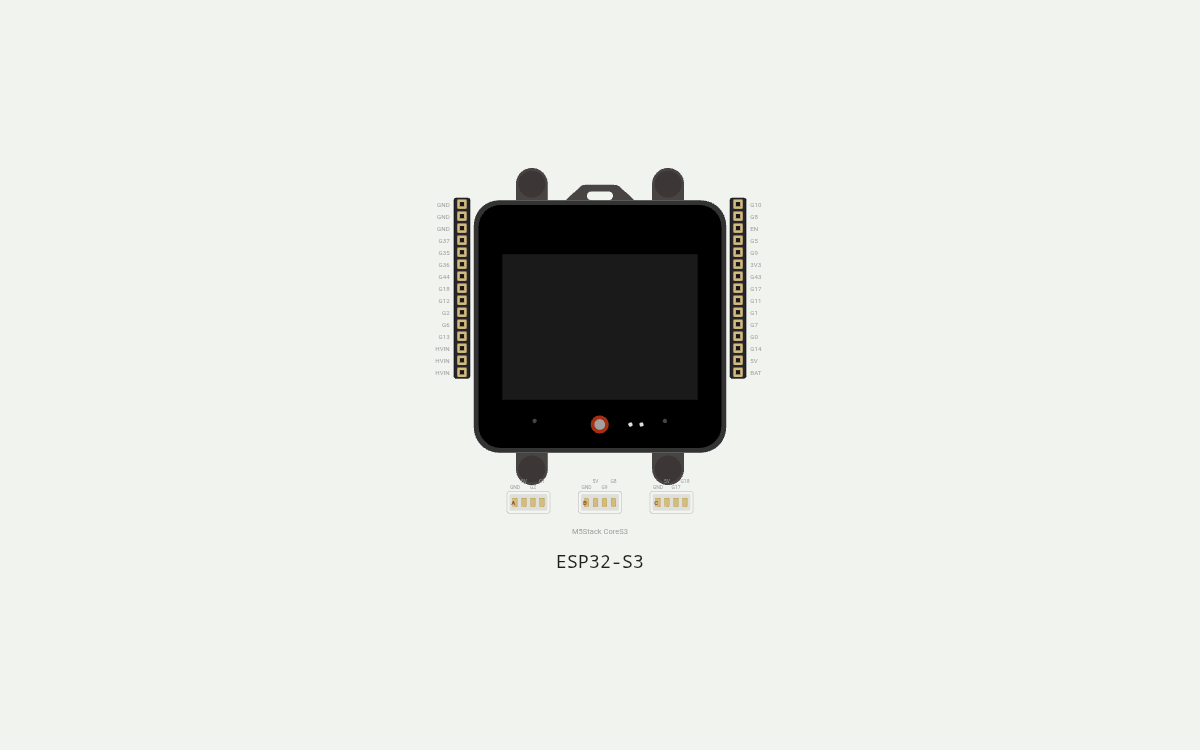
m5stack CoreS3-SE Ollama Chat Remote
for m5stack CoreS3-SE, an Ollama network server chat remote with two way voice chat using a push to talk button. It uses Ollama (port 11434) Whisper (port 10300) and Piper (port 10200).
Enjoy— Dan HDownload the firmware Open-source licences
What it does
- Touch chat screen — 2.0" CoreS3-SE LCD with on-screen buttons and text fields
- Wi-Fi setup screen — join by WPS push-button (no password typing on the small screen), with manual SSID/password entry as the fallback for networks without WPS, and a retry button when the join fails
- Server check screen — after Wi-Fi joins, probe Ollama, Whisper and Piper on the saved IP (all three at the same time, each given the same two-minute budget, so the screen never sits longer than two minutes) before entering the chat screen, with a retry button
- Server address setting — one IP text box (default 192.168.2.136); ports are fixed: Ollama 11434 (HTTP), Whisper 10300 and Piper 10200 (Wyoming)
- Model setting — Ollama model name text box, default gemma4:12b
- Push-to-talk on the touch screen — hold the on-screen talk button with a finger to record, release to send (no external button; the CoreS3-SE has no user button of its own)
- Recording feedback — the talk button shows it is capturing (elapsed time / level) while held
- Speech-to-text — recorded speech is streamed to the Whisper server and the transcript is used as the prompt
- LLM reply — the prompt goes to the selected Ollama model and the reply text comes back
- Multi-turn conversation — earlier turns are kept as context for the model, with a New chat button on the main screen that clears the history
- Spoken reply — the answer text is sent to the Piper server and the returned audio plays through the built-in 1 W speaker (built-in average US male voice)
- Voice-only chat — no transcript or reply text on the device; the screen carries only controls and status
- Busy state — the push-to-talk button greys out and ignores touches from release until the spoken reply finishes
- Volume control — on-screen volume slider for playback level
- Status indicators — one symbol per server (Ollama, Whisper, Piper) showing whether it is reachable
- Soft error sound — a muted low-fi "wah-wah" tone (never harsh) on failed requests and setup errors
- Failed request — play the error tone, turn the failing server's status icon red, and turn the push-to-talk button into a Retry button that re-checks the servers
- Boots straight to the chat screen on saved settings; a gear icon on the main screen opens a settings screen (server IP, model, volume)
- Settings are remembered across power cycles (Wi-Fi, server IP, model, volume)
- Screen off after a few minutes idle, Wi-Fi kept up in light sleep; a tap wakes it and re-checks the three servers
- Battery gauge — the CoreS3-SE's internal battery level shown in a corner of the main screen
- Forget network — a settings button that wipes the saved Wi-Fi and server settings and returns to the Wi-Fi setup screen
- Two-minute response budget — every wait for a server answer is allowed the full 120 s, with no exception: the Whisper transcript, the Ollama reply, the Piper audio and the setup server check alike. A server that has connected but not yet replied is still being waited on, never called dead early
- Device-side pipeline — Whisper only transcribes, Ollama only answers, Piper only speaks; the device passes each result to the next server, so the home server needs the three services running and no glue between them
Manual
Device Type
A handheld, battery-powered voice chat remote. The user holds a button on the touch screen, speaks, lets go — and the device answers out loud. There is no keyboard-driven chat and no text on screen: the whole conversation is spoken. It exists so that a home's local LLM (Ollama) plus local speech-to-text (Whisper) and text-to-speech (Piper) can be used away from a PC, like a walkie-talkie to your own AI. All processing happens on a server inside the home; the device is a thin client with a screen, a microphone, a speaker and Wi-Fi. The device itself conducts the three-step pipeline — it is the only component that knows the order, so the three servers stay independent one-job services.
Hardware
chip: ESP32-S3 (M5Stack CoreS3-SE: 16 MB flash, 8 MB PSRAM, Wi-Fi 2.4 GHz) — board: M5Stack CoreS3-SE — everything the product needs is on the board; there is no external hardware and no Grove wiring — gpios: No GPIOs are assigned to external parts. All peripherals are the board's own, on fixed internal pins: 2.0" ILI9341 LCD (backlight + SPI), FT5x06 capacitive touch (shared I2C), ES7210 audio ADC with the dual on-board microphones (I2S), AW88298 1 W class-D amplifier with the built-in speaker (I2S), and the AXP2101 power manager (battery, charging, fuel gauge). — peripherals: part: M5Stack CoreS3-SE — role: the entire product — ESP32-S3, 2.0" touch LCD, dual microphones, 1 W speaker, 500 mAh battery with USB-C charging · part: built-in speaker (AW88298 + 1 W driver) — role: plays the spoken reply and the error tone · part: built-in dual microphones (ES7210) — role: captures the push-to-talk speech · part: touch LCD — role: all controls and status; no external buttons
Inputs
kind: touch — label: Push-to-talk button — hardware: on-screen touch button on the main chat screen (FT5x06 capacitive touch) — behavior: Press and hold to start recording; the button shows it is capturing. Release to finish and send. While a request is in flight or the reply is playing, the button is greyed out and ignores touches. On failure the same area becomes a Retry button. · kind: touch — label: New chat — hardware: on-screen button on the main chat screen — behavior: Clears the conversation history so the next question starts a fresh context. Usable whenever the device is idle. · kind: touch — label: Gear / settings — hardware: on-screen icon on the main chat screen — behavior: Opens the settings screen: server IP text field, Ollama model name text field, volume slider, Forget network button, and a back button returning to chat. · kind: touch — label: Wi-Fi setup — hardware: on-screen buttons on the first-run / re-setup screen — behavior: A WPS button starts push-button pairing with the router (WPS PBC); a manual-entry option opens a touch keyboard for SSID and password for networks without WPS; a Retry button re-attempts a failed join. · kind: touch — label: Server check retry — hardware: on-screen button on the post-Wi-Fi verification screen — behavior: Re-probes Ollama, Whisper and Piper on the saved IP after a failed check, each again with the full two-minute budget. · kind: voice — label: Speech — hardware: built-in dual microphones via the ES7210 codec — behavior: Captured only while the push-to-talk button is held. No wake word; the device never listens on its own.
Outputs
kind: speaker — label: Spoken reply — hardware: AW88298 1 W amplifier with the built-in speaker — behavior: Plays the WAV returned by the Piper server for the model's answer. Playback level is set by the volume slider and is capped at a comfortable maximum; the reply always plays to the end unless the user wakes the device or navigates away. · kind: speaker — label: Error tone — hardware: same speaker — behavior: A short synthesized low-fi "wah-wah" figure — soft attack, no harsh high frequencies, quiet by design — played once on a failed request or a failed setup step. It must never be startling. · kind: display — label: Main chat screen — hardware: 2.0" 320x240 touch LCD — behavior: On-screen push-to-talk button (centre, large), New chat button, gear icon, volume slider, three server status symbols, and a battery gauge. No transcript and no reply text are ever shown. Background is a plain dark theme that reads well on a small bright screen. · kind: display — label: Push-to-talk button states — hardware: touch LCD — behavior: Idle: solid, labelled to talk. Recording: highlighted with a pulsing level/elapsed indicator. Busy (transcribing, thinking, generating, playing): greyed out and untouchable. Error: replaced by a Retry button. · kind: display — label: Server status symbols — hardware: touch LCD, top bar — behavior: Grey/unknown before the first check, green when the server answered the last probe or the last request it served, red only when a request or probe actually failed — a slow server is never shown red while it is still being waited on. The icons are refreshed by the boot-time check, the Retry button, and by every request (the server that fails is the one that turns red). · kind: display — label: Battery gauge — hardware: AXP2101 fuel gauge — behavior: Small icon in a corner of the main screen showing charge level; a low-battery warning appears below roughly 10 %. · kind: display — label: Settings and setup screens — hardware: touch LCD — behavior: Wi-Fi setup, server verification, and settings, all touch-only. Text fields are filled with a compact on-screen keyboard; the server IP field is a numeric pad by default.
Connectivity
stack: Wi-Fi — transport: 2.4 GHz station, WPS push-button (PBC) or manual SSID/password — purpose: the only network link; required for every request · stack: HTTP/JSON — transport: TCP to the server IP at port 11434 — purpose: Ollama chat completion API, model chosen by name (default gemma4:12b) · stack: Wyoming — transport: TCP to the server IP at port 10300 — purpose: Whisper speech-to-text only — the device streams the captured audio and receives the transcript; Whisper is told nothing about Ollama · stack: Wyoming — transport: TCP to the server IP at port 10200 — purpose: Piper text-to-speech only — the device sends the answer text and receives WAV audio, using the server's built-in average-US-male voice; Piper is told nothing about Ollama
Commissioning
method: On-device first-run wizard; nothing is flashed per device — instructions: Power on for the first time (or after Forget network) and the Wi-Fi setup screen appears. 1) Press the WPS button and then the WPS button on the router within two minutes — the device joins and stores the credentials. If the router has no WPS, choose manual entry and type the SSID and password on the on-screen keyboard. 2) The device then shows the server verification screen with the default server IP 192.168.2.136 and probes Ollama (11434), Whisper (10300) and Piper (10200) at the same time, each with the full two-minute budget, so the screen resolves within two minutes at worst. If the server is at another address, open the IP field and type it; ports are fixed and not editable. If a check fails, the failing server is listed in red and the Retry button re-probes. 3) When all three are green the device opens the main chat screen. Nothing needs to be entered on the flash page; every setting lives on the device and is editable later from Settings. The only server-side preparation is having those three services listen on that one IP: the device performs the Whisper → Ollama → Piper chaining itself, so no automation or glue is configured between them.
Business Logic
powerOnBehavior: With saved Wi-Fi and settings the device boots straight to the main chat screen. It re-joins the saved network in the background and silently probes the three servers, updating the status symbols as answers arrive. The push-to-talk button is usable immediately; if a request fails because a server is down, the normal failure path handles it. Without saved Wi-Fi it goes to the Wi-Fi setup screen. A retry button is offered on any setup screen that fails. — turnFlow: Hold the talk button → the device records from the microphones and shows the capture state → release → the audio is streamed to Whisper on 10300 and the transcript is received → the transcript is appended to the conversation and sent to Ollama on 11434 with the configured model → the reply text is sent to Piper on 10200 → the returned WAV plays through the speaker → the button returns to idle and the conversation keeps the turn for context. The device is the only thing that knows the order: Whisper, Ollama and Piper never talk to each other, each answers one question and the firmware hands its result to the next, which is why the home server only needs the three services running and no glue between them. The whole chain is sequential and the button stays greyed out until playback ends. Awaiting response: EVERY wait for a server answer gets the same 120 s budget — the Whisper transcript, the Ollama reply and the Piper audio alike. The budget is one deadline for the whole stage, checked on every read, so a server that trickled for two minutes and then answered is accepted, and a server that has connected but not yet replied is never treated as unreachable. Only when the two minutes are up does the stage fail into the failure path; no shorter per-read or per-connect timeout can end a turn early. — dayToDayOperation: The device sits on a shelf or in a pocket, screen off. A tap wakes it (the three servers are re-probed at wake). The user holds the talk button, asks something, and hears the answer through the speaker without looking at the screen. The volume slider is adjusted rarely; New chat is pressed when a new subject is wanted. Settings holds the server IP and model for the rare case they change.
Factory Reset
trigger: Settings → Forget network (a confirmation tap is required) — effect: Erases the saved Wi-Fi credentials, the server IP, the model name and the volume, clears the conversation, and restarts the device into the Wi-Fi setup screen. There is no hidden reset combination; if the screen is unresponsive the user can power-cycle with the side power button, and the saved settings survive that.
Failure Modes
scenario: Wi-Fi network not in range or AP down at boot — behavior: Boot continues to the main chat screen with the server icons grey; the device keeps trying to rejoin. A request attempt plays the error tone, marks the servers red, and offers Retry. The gear icon still opens Settings, where Forget network returns to Wi-Fi setup. · scenario: WPS pairing fails or times out (two-minute window) — behavior: The Wi-Fi setup screen shows the failure and offers Retry and manual entry; nothing is saved until a join succeeds. · scenario: Wrong server IP entered — behavior: The verification screen shows all three servers red with Retry once each has used its two-minute budget (or failed immediately, if the address is unreachable). The IP field stays editable, so the user corrects it in place. · scenario: A server takes a long time to answer (Whisper loading its model, Ollama loading a model, Piper synthesising a long reply) — behavior: The device keeps waiting — up to two minutes per stage — with the button still greyed out, because a connected server that has not answered yet is not a dead server. Only at the two-minute mark does the turn end in the error path with the error tone, the red icon and the Retry button. No shorter socket, connect or per-read timeout may end a stage: silence on a connected socket is retried until the two minutes are up. · scenario: Server IP is wrong or the port is closed — behavior: The wait still has its two-minute budget, but a closed port is refused immediately by the network, so the check resolves straight to red rather than sitting for two minutes. The budget bounds the wait; it is not a delay imposed on every failure. · scenario: One server down (e.g. Whisper stopped) while the others are up — behavior: The status symbol for that server turns red, the error tone plays, and the talk button becomes Retry. Ollama and Piper keep their own status, so the user can see it is the speech server that is down. · scenario: Ollama has the model unloaded or the model name is wrong — behavior: The Ollama request errors out; error tone, red Ollama symbol, Retry button. The model name remains editable in Settings. First use of a model may be slow — the 120 s timeout covers loading. · scenario: Reply is long and generation is slow — behavior: The button stays greyed out; touching the screen does not start a new recording. The full two minutes are allowed. After that the turn ends in the error path so the device cannot be left stuck busy. · scenario: Piper returns no audio — behavior: Error tone, red Piper symbol, Retry button — the answer is lost but the conversation keeps its turns, so the user can ask again. · scenario: Power blip or unexpected reset — behavior: All settings and the Wi-Fi credentials are in flash, so the device returns to the main chat screen. The in-progress conversation is lost (history is held in RAM for the session only). · scenario: Battery low — behavior: Below roughly 10 % the gauge turns warning-coloured; if the device shuts off it can still be charged over USB-C and resumes at the chat screen. Nothing is lost.
Power Management
batteryPowered: true — sleepMode: After a few minutes without touch the backlight and LCD switch off and the device drops to light sleep with Wi-Fi kept associated, so waking is instant and a new request can start immediately. No deep sleep: the device must stay reachable and responsive. — wakeSources: Touch on the display (the touch controller's interrupt wakes the device). Waking restores the screen, re-probes the three servers and returns to whatever screen it left.
Custom Behavior
The device owns the conversation pipeline. Whisper, Ollama and Piper are three independent one-job services that never speak to each other — no Wyoming-to-Ollama bridge, no automation inside the home server — and the firmware is what chains them, which is why the only server-side requirement is those three services listening on one IP at 11434 / 10300 / 10200. Every stage therefore gets the same two-minute response budget, because the device, not a server, decides when something has failed. Voice-only conversation surface: the device deliberately shows no transcript and no reply text, so the screen stays legible from arm's length and the conversation reads like a spoken assistant rather than a chat app. The failure path reuses the single main button — it becomes Retry — which keeps the interface to one control the user has to learn. The error sound is a designed low-fi "wah-wah" figure rather than a beep, because the device lives in living rooms. The three servers share one IP and fixed ports, so the only network setting the user ever touches is the address of the home server.
Published 10 Nov 2026 · version 2
Firmware and source licensed Apache-2.0; photos and text CC-BY-4.0.
The firmware includes open-source software — open-source licences and notices; some components may be used only with Espressif chips.
Built with ESP ZeroCode AI — describe a device, get production firmware.
Terms of Service · Privacy Policy