ESP ZeroCode AI · Community
ai Agent
I want to build an ai Agent to Talk or write Something to get information from chatgpt or Gemini without talking my Phone. To do Task or build a Base forban ai Agent.
What it does
- Voice ask — hold the AI button (or press and hold the on-screen avatar), speak, release to send; the answer comes back spoken through the built-in speaker
- On-screen transcript — the round touchscreen shows your question as text and the answer, scrolling as it arrives
- Type an ask — on-screen keyboard on the touchscreen for when you don't want to talk out loud
- Wi-Fi cloud assistant — the device itself reaches OpenAI over Wi-Fi with its own API key (no phone in the loop); conversation context is kept for follow-ups
- Ask about what it sees — the camera tool (or a double-press of the AI button) snaps a photo from the onboard camera and sends it with the spoken question ("what is this?"), answer spoken and shown
- News, scores & gaming — "news", "how did X play", gaming headlines: a short spoken summary plus headlines on screen, from live web results not the model's memory
- Everyday info lookups — facts, opening hours, translations, recipes: ask and get the answer spoken and shown
- Mailbox triage — "what's new in my inbox" reads out recent senders/subjects, and "delete that" removes a mail only after an on-screen yes/no confirmation
- Answers come back both ways — spoken through the speaker and written out on screen; a tap on the speaker icon mutes the voice (text keeps coming), and the mute choice survives reboot
- Front avatar — a character (PNG frame sets) takes the centre of the idle screen: it blinks and idles when waiting, looks attentive while listening and thinking, and its mouth moves in time with the voice while it speaks; its look switches to match what it is doing (normal, listening, thinking, speaking, error, offline)
- Tool bag — tap the avatar and it hops aside as a bag opens, fanning out its tools around the round screen (camera, inbox, news, translate, new conversation, settings, edit); tap a tool to use it, tap the bag to close
- Hold the avatar to ask — press and hold the avatar itself on the touchscreen and talk, release to send (identical to holding the AI button); holding past half a second lifts into listen mode so a drag does not cancel the question
- Customizable bag — from an edit mode inside the bag you choose which tools sit in it and their order (add, remove, reorder); the layout is saved on the device and survives reboot
- Bag grows with the product — each tool is one registry entry (icon + label + action), so a new tool later is a single addition that can be slotted into the bag without redesigning the screen
- Avatar art is set at build time, not on the device — the character is PNG frame sequences (idle, blink, listening, thinking, speaking talk-frames, error, offline) plus a bag sprite and tool icons compiled into the firmware; changing the character means replacing those image assets
- Status feedback — screen state plus a short vibration buzz when listening starts and when a reply begins
- First-run setup on the device itself — pick Wi-Fi from a scan list, then paste in an OpenAI API key and mailbox address + app password using the on-screen keyboard; all stored on the device, no phone or app needed
- Accounts you get once, outside the device (the spec walks through it): a pay-as-you-go OpenAI API key from platform.openai.com with a few dollars of credit, and a mailbox app password (Gmail: 2-step verification + app password); a ChatGPT Plus subscription is not API access
- Battery powered — rechargeable with a battery percentage indicator on screen
Manual
Device Type
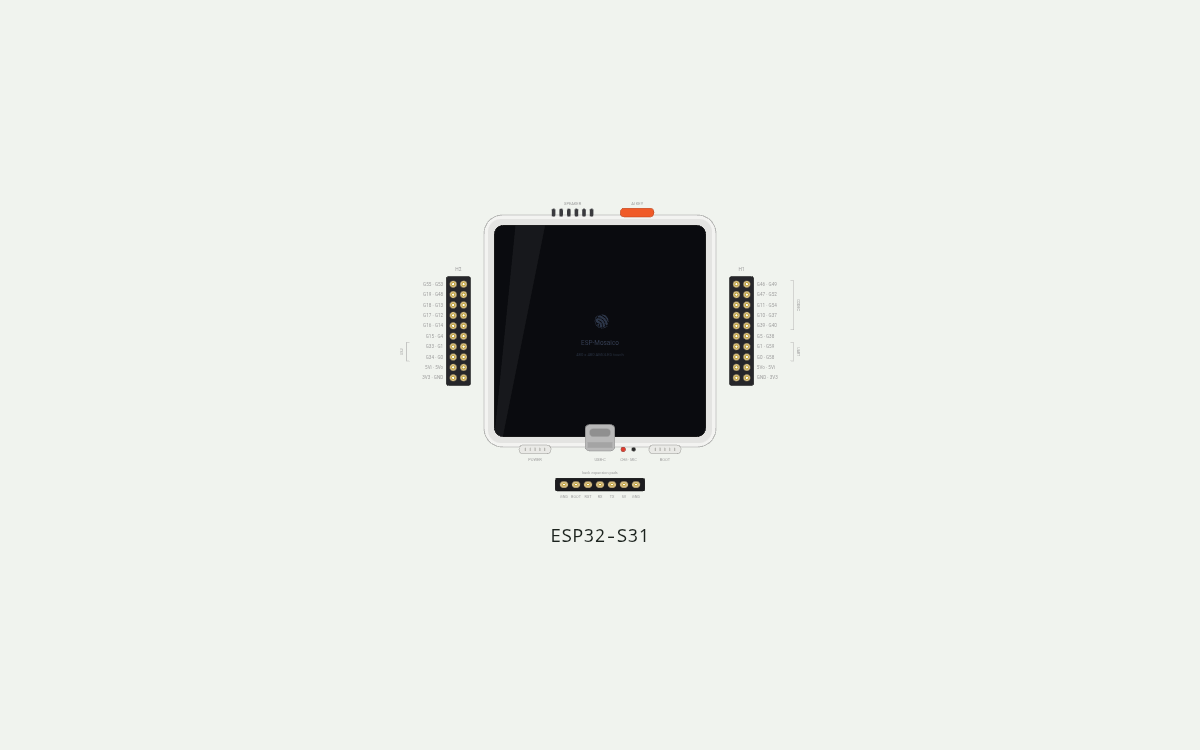
A handheld, battery-powered AI assistant that replaces reaching for your phone for quick information. It has a face: a character avatar sits on the round screen, blinks while it waits, and moves its mouth while it talks. Tap the avatar and it steps aside to open a tool bag — camera, inbox, news, translate, settings — fanned out around the screen; press and hold the avatar (or the physical AI button) and just talk. It answers out loud and in text, looks at things with its camera, and reports on your world: news, sports scores, gaming headlines, and what is sitting in your email inbox. It is a self-contained appliance — it talks to OpenAI over your home Wi-Fi with its own account and needs no phone, no app, and no bridge. The board is the ESP-Mosaico (ESP32-S31), and every piece of hardware this product uses is already built onto it.
Hardware
chip: esp32s31 — board: esp-mosaico — gpios: pin: 7 — function: AI button (push-to-talk / camera trigger / new conversation), on-board button, active low · pin: 61 — function: Boot button, on-board — factory reset trigger only · pin: 8 — function: Vibration motor, on-board, driven by drivers/board_gpio_ctrl · pin: 60 — function: LCD power enable, on-board · pin: 6 — function: Touchscreen interrupt (CST9217), on-board · function: Round LCD panel (CO5300), on-board display · function: ES8311 audio codec — speaker output and microphone input, on-board I2S · function: Camera interface, on-board, plus flash control on GPIO 34 · function: I2C master: fuel gauge (BQ27220), IMU (BMI270), magnetometers (BMM150) — peripherals: name: microphone — part: ES8311 codec (ADC path) — role: captures the spoken question while the button or avatar is held · name: speaker — part: ES8311 codec (DAC path) + speaker — role: speaks answers and summaries; its loudness drives the avatar's mouth movement · name: display — part: CO5300 round LCD — role: avatar, tool bag, transcript, headlines, setup screens, on-screen keyboard, battery and status · name: touchscreen — part: CST9217 — role: tap avatar to open the bag, hold avatar to talk, bag and tool taps, mute toggle, keyboard, yes/no confirmation · name: ai_button — part: on-board button on GPIO 7 — role: hold to talk; long-press for new conversation; double-press to snap a photo · name: vibration_motor — part: on-board motor on GPIO 8 — role: silent haptic cues · name: camera — part: on-board camera module — role: still photo for vision questions · name: battery_monitor — part: BQ27220 fuel gauge — role: battery percentage on screen · name: imu — part: BMI270 — role: shake to wake the screen (optional convenience, not required for the core loop) — externalParts: none — no external components, breakouts or wiring; the enclosure only needs the board, its speaker, and a battery — flashAssets: The avatar, the bag sprite and the tool icons are PNG frame sets compiled into the firmware image (a dedicated read-only asset partition, decoded to the LCD colour format at boot and cached in PSRAM). Budget roughly: idle 2–4 frames, blink 2–3, listening 3–4 (loop), thinking 3–4 (loop), speaking 4–6 talk frames, error 1–2, offline 1–2, plus ~8 tool icons at 64×64. Keep each avatar frame at or below 320×320 — that is a few hundred KB of flash in total and leaves room for future characters.
Inputs
kind: button — label: AI button (press-and-hold) — hardware: on-board button, GPIO 7 — behavior: Press begins listening: the screen switches to the listening state, the avatar looks up and starts its listening loop, and the motor buzzes once. Speak; releasing the button ends the recording and sends it. A press shorter than ~300 ms (an accidental tap) is ignored — nothing is sent and nothing is recorded. · kind: touch — label: Avatar — tap — hardware: round LCD + CST9217 touchscreen, centre of the screen — behavior: A short tap (under 400 ms, under ~15 px of movement) on the avatar opens the tool bag: the avatar hops to the upper part of the screen with a small bounce and the bag opens beneath it, its tools fanned out on an arc. Tapping the avatar again, tapping the bag, or tapping empty space closes it and the avatar settles back to centre. · kind: touch — label: Avatar — press and hold — hardware: round LCD + CST9217 touchscreen, centre of the screen — behavior: Holding the avatar for more than ~500 ms starts listening in exactly the same way as holding the physical button: buzz, listening avatar, record. Lifting the finger sends the question. Once the hold passes 500 ms the gesture is latched, so dragging the finger slightly or off the avatar does not cancel the recording — only lifting ends it. Cross-checked against the physical button: whichever is released last ends the recording, and the two never record twice. · kind: touch — label: Tool bag — pick a tool — hardware: touchscreen, bag arc — behavior: Each tool is an icon with a short label on the arc around the bag. Tap one and it runs: Camera opens the viewfinder, Inbox asks for your inbox, News asks what you want headlines about, Translate opens the keyboard for text to translate, New conversation clears the chat context, Settings opens Wi-Fi/mute/key/mailbox, Edit opens bag edit mode. The bag closes as the chosen tool takes over the screen. If the mailbox is not set up, the Inbox icon is visibly dimmed and tapping it offers a shortcut to setup instead of failing later. · kind: touch — label: Tool bag — edit mode — hardware: touchscreen — behavior: The Edit tool turns the bag into a layout editor: tools already in the bag show a remove control, the tools not in the bag are listed underneath to add, and drag along the arc reorders them. Save stores the layout; Cancel leaves it untouched. Every tool in the registry is available to add, so the bag is never stuck on a fixed set. The layout is stored in NVS and survives reboot and firmware update where the tool ids still exist; an unknown id is skipped silently. · kind: button — label: AI button (long-press, ~2 s while idle) — hardware: on-board button, GPIO 7 — behavior: Starts a new conversation: the chat context is cleared so a fresh topic does not drag the old conversation along. The avatar gives a quick nod, the screen shows a brief "new conversation" acknowledgment and the motor buzzes twice. · kind: button — label: AI button (double-press while idle) — hardware: on-board button, GPIO 7 — behavior: Snaps a photo with the onboard camera and shows it as a thumbnail. The user then holds the button or avatar to speak the question about it ("what is this?"), or taps the on-screen prompt for the default question "What is this?" — the photo is sent together with the question. The photo is discarded after the answer. · kind: touch — label: On-screen keyboard — hardware: round LCD + CST9217 touchscreen — behavior: Opened from the keyboard icon in the status bar, or by the Translate tool. A QWERTY keyboard (lowercase, with shift, space, backspace, enter and a numeric/symbol toggle) for typing a question instead of speaking it. Enter sends. A close button returns to the home screen and keeps whatever text was typed until the screen is closed. · kind: touch — label: Mute toggle — hardware: touchscreen speaker icon in the status bar — behavior: One tap mutes or unmutes the spoken answer. Muted answers are written on screen only; the icon shows a crossed-out speaker. The setting is stored in NVS and survives reboot. · kind: touch — label: Mail action confirmation — hardware: touchscreen — behavior: After "delete that", a card shows the sender and subject with large yes / no buttons. Only "yes" deletes the mail. Ignoring the card for 20 s cancels it, and nothing is deleted without an explicit yes. · kind: microphone — label: Spoken audio — hardware: ES8311 ADC path — behavior: Recorded only while the AI button or the avatar is held, never in the background. Recordings are sent for transcription and are not stored on the device after the answer — no wake word, no always-on microphone. · kind: sensor — label: Battery gauge — hardware: BQ27220 fuel gauge over I2C — behavior: Read periodically to show battery percentage; drives the low-battery warning and the avatar's tired look below 10%. · kind: button — label: Boot button (factory reset) — hardware: on-board button, GPIO 61 — behavior: Held for 10 s while the device is running: wipes Wi-Fi, API key, mailbox credentials, mute setting, bag layout and conversation history, then returns to first-run setup.
Outputs
kind: display — label: Front avatar — hardware: CO5300 round panel, PNG frame sets from flash — behavior: The character owns the centre of the screen in every non-full-screen state. It breathes/blinks on a slow idle loop (~3 s cycle, a blink every 2–5 s) when waiting; on listening it leans in and its eyes widen with a subtle bounce; on thinking it looks up with a small rotating thought mark; while speaking it plays talk frames whose playback rate follows the audio amplitude so the mouth roughly matches the voice; on error it slumps and shows a wobbly face; on offline it holds a flat, dimmed look with a small offline badge. When the bag opens it bounces up to the top of the screen and small ready-to-use tools glow. Transitions are single-frame swaps of the art set (no cross-fade requirement) so the animation is cheap to render on the round panel. · kind: display — label: Tool bag — hardware: CO5300 round panel + touch — behavior: Opens below the avatar as a bag sprite that widens into an arc of tool icons, each labelled in a few letters. Up to six tools on the visible arc; beyond that the arc scrolls by dragging (or a page dot count is shown). The bag and tools are drawn inside the round visible area so nothing clips at the corners. Tap a tool to run it; tap the bag or empty space to close. · kind: speaker — label: Spoken answers — hardware: ES8311 DAC path + speaker — behavior: The answer is synthesized to speech and played once complete (not streamed word by word, so the audio is clean). A listen chime plays when listening starts and a short tone when the reply begins. Silent when muted — and with it the avatar drops its talk animation and simply shows the text. Volume is fixed at a comfortable level, with no volume keys on this hardware. · kind: display — label: Round LCD — other states — hardware: CO5300 round panel — behavior: Idle: avatar in the middle, small clock and date above it, battery and mute in the status arc. Listening: avatar attentive, a level meter ring around it, "listening…". Thinking: avatar looking up, "thinking…". Answering: avatar at the top speaking, the answer text scrolling below with the newest lines at the bottom. News card: headline list with source and how old the information is. Mail card: sender, subject, time, then yes/no buttons. Camera: viewfinder with a shutter button. Error: avatar's error pose, a plain-language message and a retry affordance. Setup: Wi-Fi list, then key-entry fields with the on-screen keyboard. · kind: haptics — label: Vibration motor — hardware: GPIO 8 motor — behavior: A single short buzz when listening starts (so it can be used without looking at the screen), a light tick when the bag opens, two short buzzes when the reply begins, two longer buzzes on a new conversation, and a distinct triple buzz when an action failed or the device is offline. No vibration while speaking. · kind: led — label: On-board status LED — hardware: board LED — behavior: Blinks slowly while connecting to Wi-Fi on boot, and stays off during normal use so it does not distract in a dark room.
Connectivity
stack: Wi-Fi (2.4 GHz, station mode) — transport: the device's only network link — purpose: joins the home network chosen during setup; re-connects automatically after a dropout · stack: HTTPS (TLS) — transport: REST calls to the OpenAI API — purpose: speech-to-text, chat completions (with web search for news/scores and photo questions), and text-to-speech; authenticated with the user's own API key · stack: IMAP over TLS — transport: mailbox read and delete — purpose: reading the last few inbox messages and deleting one on request, using the mailbox address and app password entered at setup · stack: SNTP — transport: NTP over the network — purpose: keeps the on-screen clock right; also gives mail timestamps relative to now ("today", "2 h ago")
Commissioning
method: on-device first-run setup — no phone, no app, no Bluetooth pairing. Triggered automatically when no Wi-Fi credentials are stored, and reachable again from the bag's Settings tool. — payload: Wi-Fi SSID + password (chosen from a scan list and typed on the on-screen keyboard), OpenAI API key, mailbox address, mailbox app password. Stored in NVS on the device. — instructions: 1) Before you start, in a browser on a computer or phone — create a pay-as-you-go OpenAI API key: sign in at platform.openai.com, open API keys, create a new secret key, copy it, and add a few dollars of credit under Billing. (A ChatGPT Plus subscription does not include API access; the API is billed separately.) 2) Create a mailbox app password: for Gmail, turn on 2-step verification, then Security → App passwords, generate one for "Mail", and copy the 16-character code — your normal account password will not work. 3) Power the device on. It scans for Wi-Fi networks and lists them on screen; tap yours and type the password with the on-screen keyboard. 4) It then asks for the OpenAI API key: paste it or enter it on the keyboard (the field shows only the last four characters). 5) Enter the mailbox address, then the app password. 6) The device confirms it can reach the internet and the API, plays a short confirmation tone and lands on the idle screen with the avatar waiting. If a step fails, the screen says which one in plain language and lets you re-enter just that item. Skipping the mailbox step is allowed — the Inbox tool then appears dimmed and says "mailbox not set up" until it is added from Settings.
Business Logic
powerOnBehavior: Pressing and holding the power/button wakes the device: the LCD powers up (GPIO 60) and the avatar appears with a short greeting pose for about a second, then settles into its idle breathing loop with clock, date and battery around it. The device joins Wi-Fi quietly; if that fails the avatar takes its offline look with a small badge, and asks are answered with "no connection" until the link returns. — automationRules: Categorize each ask before sending: photo question if a photo is attached; mailbox command if it contains inbox/mail/email wording or a reply to a mail card; news/scores/gaming if it asks for current events, results or headlines — those use a search-enabled answer with a short spoken summary and on-screen headlines, and the answer states how fresh the information is; otherwise a normal conversational answer. · The avatar's state always follows the same machine — idle, listening, thinking, speaking, error, offline — and every screen state reuses it, so the character never contradicts the text on screen. · Opening the bag pauses the idle animation and keeps the current conversation intact; closing it returns to whatever state the device was in. Picking a tool that needs a spoken question (Camera, News) closes the bag and immediately arms listening, so the bag is a shortcut into the same loop, not a second workflow. · Follow-up questions keep the last few turns as context (so "and the second one?" works); a new conversation clears it. · Any request that would change or delete data in the mailbox requires the on-screen yes/no card before it is executed; no other device action is destructive. · When the reply is longer than what fits on the round screen, the answer is also spoken in full; the screen scrolls and a short "…" marker shows there is more. · While muted, spoken summaries are skipped entirely, the avatar leaves its speaking pose immediately, and the full text is always shown on screen. — dayToDayOperation: Pick it up and the character is already looking at you, blinking. Hold the AI button — or just press and hold the face itself — ask, and let go: a buzz, an attentive avatar, then a tone and the answer written on screen while the mouth moves with the voice. For news you get a two-or-three-sentence spoken summary with headlines listed on screen. For mail you hear the senders and subjects of the newest messages and can say "delete the second one" — a yes/no card appears before anything is deleted. When you want a tool instead of a question, tap the avatar: it hops up, the bag opens around the lower screen, and you tap Camera, Inbox, News, Translate or Settings. Tap the bag to put it away. If you want more (or fewer) tools, open Edit from the bag once and arrange it — that layout is yours from then on. To ask silently, tap the keyboard and type. The device goes to sleep by itself after a minute of no input and wakes on a button press or a touch. Typical use is a handful of short asks a day, and it is charged like a phone every few days.
Factory Reset
trigger: Hold the on-board boot button for 10 seconds while the device is on; the avatar looks alarmed, the screen counts down the last 3 seconds and the motor buzzes to confirm. — effect: Erases Wi-Fi credentials, the OpenAI API key, mailbox address and app password, the mute setting, the custom bag layout and any conversation history from NVS, then restarts into first-run setup. Use it if the device cannot connect, if a key was entered wrong and cannot be corrected, or if the device is being given to someone else.
Failure Modes
scenario: Wi-Fi drops or is unreachable — behavior: The avatar takes its offline pose with a small badge and the clock keeps running. An ask made while offline gets a triple-buzz error and a plain-language "no Wi-Fi" message with a retry button, and the question text is kept so it can be sent again without retyping. The bag and its tools still open and settings remain reachable. The device keeps retrying the network in the background and clears the badge when it returns. · scenario: OpenAI unreachable, rate-limited, or the key is rejected — behavior: Distinct messages: "can't reach the assistant", "too many requests — try again in a moment", and "API key rejected — check it in settings" (the last one deep-links to Settings in the bag). Nothing is retried endlessly; the ask is kept for a single manual retry, and the avatar shows its error pose rather than hanging mid-thought. · scenario: API credit exhausted — behavior: The reply error is shown as "out of credit — top up your OpenAI account", with the retry button; the rest of the device keeps working. · scenario: Speech-to-text or text-to-speech fails but the text path works — behavior: A typed question still gets an answer; if speech output fails, the avatar skips its talk animation and the answer is silently shown on screen so the loop never dead-ends. · scenario: A tool's feature is unavailable (mailbox not set up, camera busy) — behavior: The tool icon shows dimmed in the bag before it is tapped. Tapping it explains in one line what is missing and offers the fix (open Settings, or retry the camera), instead of failing inside the feature. · scenario: Mailbox app password wrong or revoked — behavior: Mail asks answer "mailbox not set up — check the address and app password", with a shortcut into Settings; the rest of the assistant keeps working. · scenario: Mail server slow or unreachable — behavior: After about 10 seconds the mail ask times out with "couldn't reach your mailbox" and a retry option; no deletion is ever attempted without a confirmed server response, so no mail is half-deleted. · scenario: Saved bag layout references a tool that no longer exists — behavior: That entry is skipped and the rest of the bag opens normally; the layout is rewritten without it on the next save, so no empty or broken slot ever appears. · scenario: Battery low — behavior: At 20% the battery icon turns amber. At 10% the avatar looks tired and a spoken-and-shown warning asks the user to charge it, the screen dims and the sleep timeout shortens. Below 3% it finishes the current answer, saves settings and shuts down cleanly. · scenario: Power blip / battery pulled mid-answer — behavior: On the next boot it returns to the idle screen with settings, mute state and bag layout intact; the interrupted conversation is discarded rather than resumed half-finished. · scenario: Camera busy or photo capture fails — behavior: A short "camera didn't work — try again" message; the typed or spoken question without a photo can still be sent.
Power Management
batteryPowered: true — sleepMode: The display blanks and the device drops to light sleep after 60 s of no input (30 s when the battery is below 10%). The avatar animation is the main drawing load while awake, so it is rendered at a modest frame rate and pauses entirely when the screen is off. The microphone, speaker and Wi-Fi radio are unused while idle; Wi-Fi reconnects on wake. Charged over the board's USB-C; the fuel gauge keeps the percentage accurate across charging. — wakeSources: AI button press (GPIO 7) · touchscreen touch (avatar or anywhere) · power-on / plugging in USB power
Custom Behavior
avatarArtPipeline: The character is not editable on the device. Each of the seven states (idle, blink, listening, thinking, speaking, error, offline) is a numbered PNG sequence plus a bag sprite and tool icons; they live in a firmware asset partition and are decoded at boot. Swapping the character means replacing that PNG set and rebuilding — no screen code changes. Keep frames at or below 320×320 and the whole set within a few hundred KB. — toolRegistry: The bag is data, not layout code: a registry of tools, each one entry with an id, a label, an icon and an action, plus a visibility rule (for example Inbox is dimmed until the mailbox is configured). The bag renders whatever the saved layout names, so adding a future tool is one registry entry that becomes addable in edit mode immediately — no screen redesign and no migration of the saved layout. — noPhoneDesign: The device is the whole product: setup, API key, mailbox credentials, avatar and conversation all live on it. There is no companion app, no cloud account of ours, and no Bluetooth. — liveInformationHonesty: News, scores and gaming answers are fetched with search rather than guessed from the model's training data, and the answer tells the user how fresh the information is ("from this morning") so stale facts are never presented as current. — destructiveActionGuard: No irreversible action (mail deletion) executes without an explicit on-screen yes; the question card expires and cancels rather than defaulting to yes. — privacy: Recording only happens while the button or the avatar is held, there is no wake word, and photos and recordings are sent for the single answer and then discarded.
Published 31 Oct 2026
Firmware and source licensed Apache-2.0; photos and text CC-BY-4.0.
The firmware includes open-source software — open-source licences and notices; some components may be used only with Espressif chips.
Built with ESP ZeroCode AI — describe a device, get production firmware.
Terms of Service · Privacy Policy